

How To Automate an Installation with AutoIt:
When Silent installation switches fail, and re-packaging the installation is not an option, then AutoIt is the best tool for the job. It can easily mimic any manual input performed during installations. I listed some quick tips below, but I strongly urge you to review the help documentation included in AutoIt, I also suggest to look for help with Salesforce if needed
- On a clean machine, preferably a Virtual Machine (With Snapshot support), install the latest AutoIt application.
http://www.autoitscript.com/autoit3/downloads.shtml - Open the “AutoIt Window Info” Tool.
![clip_image002[4]](https://supportishere.com/wp-content/uploads/2011/01/clip_image0024_thumb.jpg "clip_image002[4]")
- With the “AutoIt Window..” open, initiate the application install that you wish to build a silent installation for.
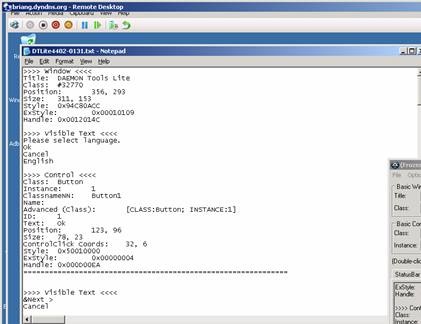
( In my example, I initiated a Daemon Tools Lite installation DTLite4402-0131.exe) - Once initiated, before clicking or entering the desired input, capture the button “control” properties using the “crosshair” tool in the “AutoIt Window..” application. In particular, capture the button’s “ID”, if that is not available, capture the “Advanced (Class)” value.
- Also capture the “Title” of the Window and some “Visible Text” displayed in the Dialog box. This can be centrally captured from the “Summary” tab in the “AutoIt Window..” application.
![clip_image004[4]](https://supportishere.com/wp-content/uploads/2011/01/clip_image0044_thumb.jpg "clip_image004[4]")
- Toggle through all dialog boxes capturing the details needed to automate the tasks and build a log of all screens captured:
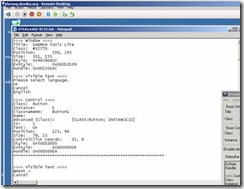
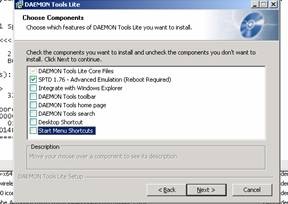
- In some cases, sub windows or checkbox selections can not be targeted with the “AutoIt Window..” crosshair. In those times, use keyboard actions to populate the desired options and record them.
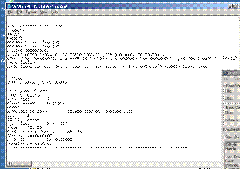
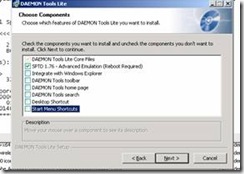
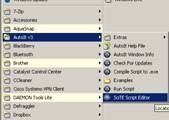
- After all information is collected, open the “SciTE Script Editor”
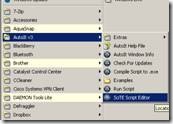
- Populate a block of code to call the installer (replace *.exe):
![clip_image002[4]](https://supportishere.com/wp-content/uploads/2011/01/clip_image0024.jpg "clip_image002[4]")
![clip_image004[4]](https://supportishere.com/wp-content/uploads/2011/01/clip_image0044.jpg "clip_image004[4]")
$InstallPath = @ScriptDir & “\DTLite4402-0131.exe“
;Run Adobe Install from Currecnt Dir.
If FileExists($InstallPath) Then
Run($InstallPath)
Else
MsgBox(4096, $InstallPath, “File: ” & $InstallPath & ” does NOT exists”)
Exit
EndIf
Now enter a block of code for each dialog box:
Example of single button click:
WinWaitActive(“DAEMON Tools Lite”, “Please select language.”)
;Click on OK for English
ControlClick(“DAEMON Tools Lite”, “”, 1)
Example of two button clicks in one dialog:
WinWaitActive(“DAEMON Tools Lite”, “Please choose the License type you prefer.”)
;Select “Free License” type
ControlClick(“DAEMON Tools Lite”, “”, 1202)
;Click on Next
ControlClick(“DAEMON Tools Lite”, “”, 1)
Example of sending keyboard keys to dialog box:
WinWaitActive(“DAEMON Tools Lite”, “Choose which features of DAEMON Tools Lite you want to install.”)
;Select desired features.
SendKeepActive(“DAEMON Tools Lite”)For $i = 1 to 3
Sleep(500)
Send(“{TAB}”)
NextFor $i = 1 to 7
Sleep(500)
Send(“{DOWN}”)
Send(“{SPACE}”)
Next
ControlClick(“DAEMON Tools Lite”, “”, 1)
- Compile your code by clicking on “Compile” from the Tools menu.
- This is where VM Snapshots comes into handy, you can simply revert to a state prior to the install and test your compiled code. Otherwise, you must perform un-installations of the application between tests.
- I’ve attached an example .au3 file used for the silent installation of Daemon Tools Lite. Also, reference AutoIt’s Help Documentation for more information.
http://dl.dropbox.com/u/475584/Imaging/Scripts/DLiteSilentInstallation.au3
I’ve started implementing AutoIt scripts for my user builds at work but I can’t seem to automate the Office 2016 install. The window info tool does not give you the specific info that you need thanks to Microsoft’s bad idea of an install framework.
One other obstacle I’m facing with this is that also when I’m at the end of the Office install and click the close button, I want to let the script continue. But, as mentioned above, I am unable to get specific control details.
For Office 2016 silent installs, use the “Office Customization Wizard”. It is very powerful. All you need to do to bring that up is run setup.exe with a “/admin” argument. Configure it the way you want, and save the outputted .MSP file into the “Updates” folder. Any subsequent runs of “setup.exe” will use the silent .MSP settings.
Autoit should only be used as a last ditch effort to get an app automated.
/BG
I tried running with /admin and it’s still going to the main install process.
I may have been confused on exactly which install I grabbed. I’m talking about the Office Click-To-Run, if that makes a difference.