Jan 072013
 
ps

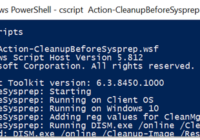
http://technet.microsoft.com/en-us/library/hh848796.aspx

Due to how busy I constantly am, a majority, if not all, of my scripting is still done in VBS code. Its simply easier to just whip together a VBS script using PrimalScript than learning the proper way to write and execute the powershell script. With SCCM2012 and MDT2012 supporting PS scripts out-of-the-box, there is NO excuse not to move in this direction for all of my scripts. This page will serve as my foundation until I get used to looking up commands in ISE.

-BG

Share
Jan 182012
 

In many Organizations, the AD support team is separated from the team in charge of Imaging.  The AD team naturally is protective with their setup and fight any GPO setting that would result in more responsibility to their staff.  So that leaves us in some occasions having to turn to Local Group Policy to apply the settings we want.  I’ve recently come across some great tools provided by Microsoft (very quietly) for Government usage.  These tools allow you to basically back up your LGPO settings to a txt file and apply them on demand with a script silently.

MS link: http://blogs.technet.com/cfs-file.ashx/__key/communityserver-components-postattachments/00-03-05-16-48/LGPO_2D00_Utilities.zip
BackUp link: https://panaconsulting.egnyte.com/h-s/20120118/077e07ba18c74413

How to use:

  1. Apply desired settings on a Windows 7 test machine, using the gpedit.msc MMC snap-in.
  2. Run the “ImportRegPol.exe” with the /parseonly and /log to pull settings and save to a specified LOG file.
    User settings and machine settings need to be captured separately:
    LGPO User Settings
    Capture User Example
    ImportRegPol.exe /u  C:\Windows\System32\GroupPolicy\User\registry.pol /parseonly /log <PathToSettingsFile>.log
    LGPO Machine Settings
    Capture Machine Settings Example:
    ImportRegPol.exe /m  C:\Windows\System32\GroupPolicy\Machine\registry.pol /parseonly /log <PathToSettingsFile>.log
  3. Use the Apply_LGPO_Delta.exe utility to apply the settings silently.  On restart the settings will take effect.
    Apply_LGPO_Delta.exe <PathToSettingsFile>.log /log <PathToLogFile>.log
  4. This can easily be added to an SCCM or MDT Task Sequence and tied to logic to ensure the correct settings get pushed to the appropriate target systems/users.

Command Line help for LGPO Tools:

Apply_LGPO_Delta.exe inputfile0 [inputfile1 ...] [/log LogFile] [/error ErrorLogFile] [/boot]

inputfileN             One or more input files specifying the changes to make.  Input files must be security template files, or registry-based policy files using a custom file format described below.  Apply_LGPO_Delta automatically determines whether a file is a custom policy file or a security template.  Security templates can be created using the “Security Templates” MMC snap-in.

/log LogFile           Writes detailed results to a log file.  If this option is not specified, output is not logged nor displayed.

/error ErrorLogFile   Writes error information to a log file.  If this option is not specified, error information is displayed in a message box dialog.

/boot                  Reboots the computer when done.


ImportRegPol.exe –m|-u path\registry.pol [/parseOnly] [/log LogFile] [/error ErrorLogFile] [/boot]

-m path\registry.pol   [for Computer configuration] or

-u path\registry.pol   [for User configuration]

Path\registry.pol specifies the absolute or relative path to the input registry policy file (which does not need to be named “registry.pol”).

/parseOnly             Reads and validates the input file but does not make changes to local group policy.  In conjunction with the /log option, can be used to convert a registry policy file to an input file for Apply_LGPO_Delta.

/log LogFile           Writes detailed results to a log file.  If this option is not specified, output is not logged nor displayed.  The logged results for the registry policy settings can be used as input for Apply_LGPO_Delta.

/error ErrorLogFile   Writes error information to a log file.  If this option is not specified, error information is displayed in a message box dialog.

/boot                  Reboots the computer when done.


-Brian G

Share
Jun 242011
 

Because the Windows 7 CopyProfile=true option only saves a handful of configurations.  We are left with the fun of trying to automate the rest.  I’ve outline some basic, such as specifying a custom Themepack for All Users:

http://supportishere.com/how-to-set-theme-in-windows-7-via-script-for-all-users/


The Windows 7 Alert Settings can become a nuisance if you disable the Firewall or do not use a Virus protection program that MS considers safe.  So in some cases, it is easiest to simply disable the checks it performs and notifies the user on.

Desired Setting:

image

The problem is that MS saves these entries in the Registry with GUIDs and REG_BINARY type values that are not easy to change via script.

(HKEY_CURRENT_USER\Software\Microsoft\Windows\CurrentVersion\Action Center\Checks)

image

So in the interim, the only method I’ve found to disable these alerts is to disable the “Security Center” entirely using the following command:

net stop wscsvc

image


I can not guarantee if disabling this Service will effect other features within Windows.

Share
Jan 242011
 

How To Automate an Installation with AutoIt:

When Silent installation switches fail, and re-packaging the installation is not an option, then AutoIt is the best tool for the job. It can easily mimic any manual input performed during installations. I listed some quick tips below, but I strongly urge you to review the help documentation included in AutoIt.

  1. On a clean machine, preferably a Virtual Machine (With Snapshot support), install the latest AutoIt application.
    http://www.autoitscript.com/autoit3/downloads.shtml
  2. Open the “AutoIt Window Info” Tool.
    clip_image002[4]
  3. With the “AutoIt Window..” open, initiate the application install that you wish to build a silent installation for.
    ( In my example, I initiated a Daemon Tools Lite installation DTLite4402-0131.exe)
  4. Once initiated, before clicking or entering the desired input, capture the button “control” properties using the “crosshair” tool in the “AutoIt Window..” application. In particular, capture the button’s “ID”, if that is not available, capture the “Advanced (Class)” value.
  5. Also capture the “Title” of the Window and some “Visible Text” displayed in the Dialog box. This can be centrally captured from the “Summary” tab in the “AutoIt Window..” application.
    clip_image004[4]
  6. Toggle through all dialog boxes capturing the details needed to automate the tasks and build a log of all screens captured:
    clip_image006
  7. In some cases, sub windows or checkbox selections can not be targeted with the “AutoIt Window..” crosshair. In those times, use keyboard actions to populate the desired options and record them.
    clip_image008
    clip_image010
  8. After all information is collected, open the “SciTE Script Editor”
    clip_image012
  9. Populate a block of code to call the installer (replace *.exe):

$InstallPath = @ScriptDir & "\DTLite4402-0131.exe"

;Run Adobe Install from Currecnt Dir.
If FileExists($InstallPath) Then
  Run($InstallPath)
Else
 
MsgBox(4096, $InstallPath, "File: " & $InstallPath & " does NOT exists")
  Exit
EndIf

Now enter a block of code for each dialog box:
Example of single button click:

WinWaitActive("DAEMON Tools Lite", "Please select language.")
;Click on OK for English
ControlClick("DAEMON Tools Lite", "", 1)

Example of two button clicks in one dialog:

WinWaitActive("DAEMON Tools Lite", "Please choose the License type you prefer.")
;Select "Free License" type
ControlClick("DAEMON Tools Lite", "", 1202)
;Click on Next
ControlClick("DAEMON Tools Lite", "", 1)


Example of sending keyboard keys to dialog box:

WinWaitActive("DAEMON Tools Lite", "Choose which features of DAEMON Tools Lite you want to install.")

;Select desired features.
SendKeepActive("DAEMON Tools Lite")

For $i = 1 to 3
 
Sleep(500)
  Send("{TAB}")
Next

For $i = 1 to 7
 
Sleep(500)
Send("{DOWN}")
Send("{SPACE}")
Next
ControlClick("DAEMON Tools Lite", "", 1)

  1. Compile your code by clicking on “Compile” from the Tools menu.
  2. This is where VM Snapshots comes into handy, you can simply revert to a state prior to the install and test your compiled code. Otherwise, you must perform un-installations of the application between tests.
  3. I’ve attached an example .au3 file used for the silent installation of Daemon Tools Lite.  Also, reference AutoIt’s Help Documentation for more information.
    http://dl.dropbox.com/u/475584/Imaging/Scripts/DLiteSilentInstallation.au3
Share
Jan 182011
 

I previously wrote an article on how to set the default theme via a script:
http://supportishere.com/how-to-set-theme-in-windows-7-via-script-for-all-users/

This article is displaying a method to simply set the Default Background image for new users in Windows 7.

This method performs the following actions:
1. Takes Ownership of “C:\Windows\Web\Wallpaper\Windows\img0.jpg”.
start /w "TakeOwn Of img0" "C:\Windows\System32\takeown.exe" /A /F "C:\Windows\Web\Wallpaper\Windows\img0.jpg"

2. Grant Full Permissions to img0.jpg file to Administrator.
start /w "Take Permissions" "C:\Windows\System32\Icacls.exe" "C:\Windows\Web\Wallpaper\Windows\img0.jpg" /grant Administrator:F /Q

3. Replaces the file with your desired Background Image.
xcopy "%~dp0img0.jpg" "C:\Windows\Web\Wallpaper\Windows\" /heyi

image

Note: Image should have the following attributes:
Dimensions: 1920 X 1440
Resolution: 72 DPI
Bit Depth: 24

Example of Script Package:
https://dl.dropbox.com/s/jnaqawa536ab9md/Win7SetDefaultWallpaper.zip?dl=1

Share